Valorant may be a top-tier tactical shooter with its pixel-perfect headshots, team comps, and cracked plays, but hey, it’s not everyone’s endgame. Whether you’re switching up your playlist, freeing up some SSD real estate, or just burnt out from Ranked tilt queues, uninstalling Valorant might be the move.
But wait, uninstalling it isn’t the same across platforms. In fact, if you’re on console, there’s a bit of a twist (and not the plot kind from an Omen ult). Let’s break it down.
Can You Even Play Valorant on Xbox or PS5?
Let’s get one thing straight before you start spamming the uninstall button on your controller:
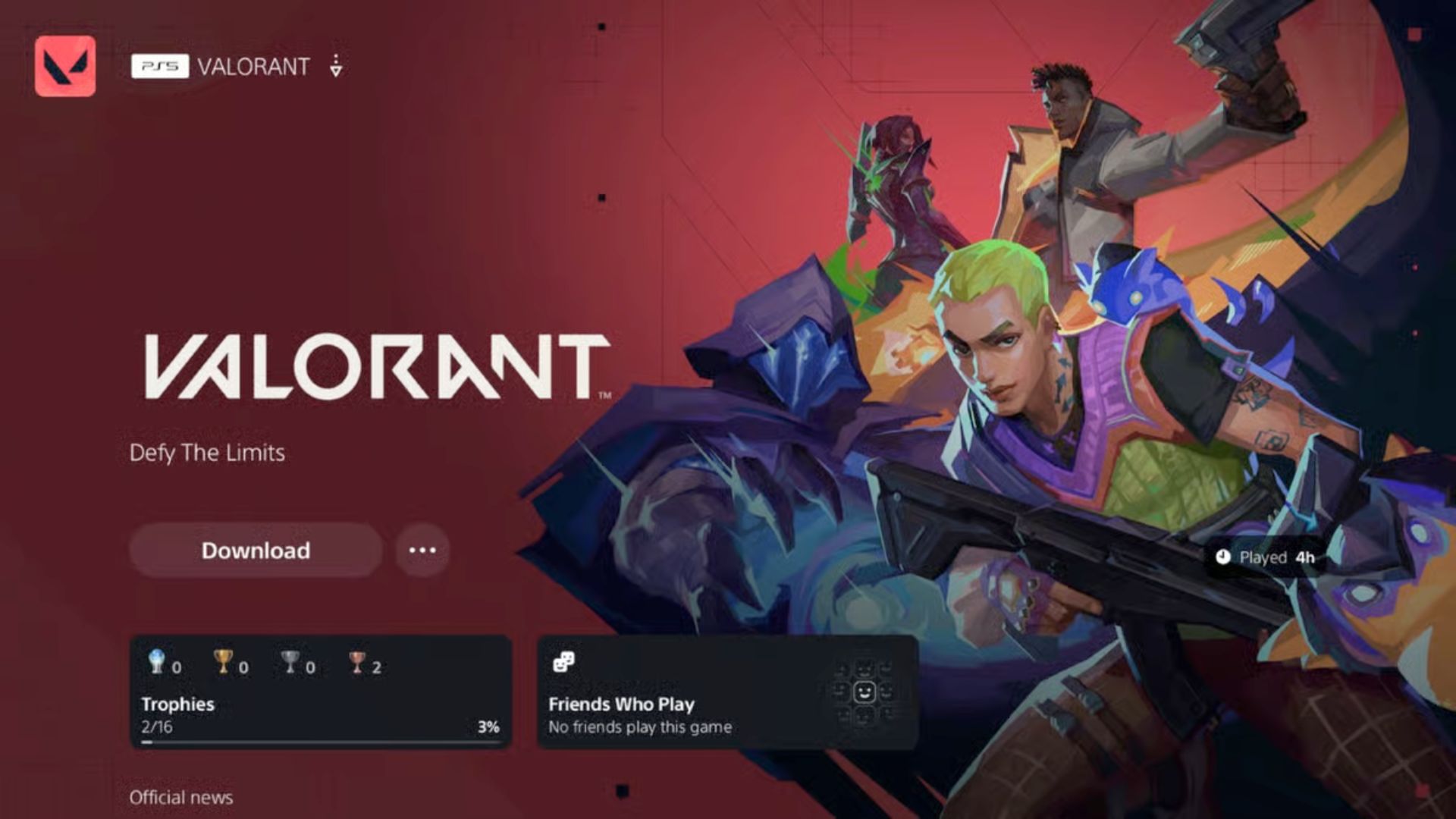
Valorant is still a PC-exclusive title. As of August 2025, there’s no official release on Xbox Series X|S or PlayStation 5.
Sure, Riot Games has been teasing a console port for years, and yeah, a closed console beta has been floating around in rumorville, but unless you’re one of a few ultra-lucky playtesters (and we mean super limited), you won’t find a legitimate Valorant app on your console dashboard.
PSA: If a sketchy site claims you can download “Valorant Console Edition” or offers an “APK” for your PlayStation (??), run. These are scams at best they waste your time, at worst they load your system with malware nastier than Cypher’s camera placements.
TL;DR: Xbox and PS5 players, there’s nothing to uninstall. Valorant isn’t on your system (yet).
How to Uninstall Valorant on PC (Windows)
Alright, now for the real deal. If you’re on Windows, uninstalling Valorant isn’t just a right-click-and-delete kind of job. You’ve got two main components to boot:
- Valorant itself
- Riot Vanguard (the anti-cheat overlord that runs deep in your system)
Here’s how to wipe them clean without leaving digital crumbs behind.
Method 1: Uninstall via Windows Settings
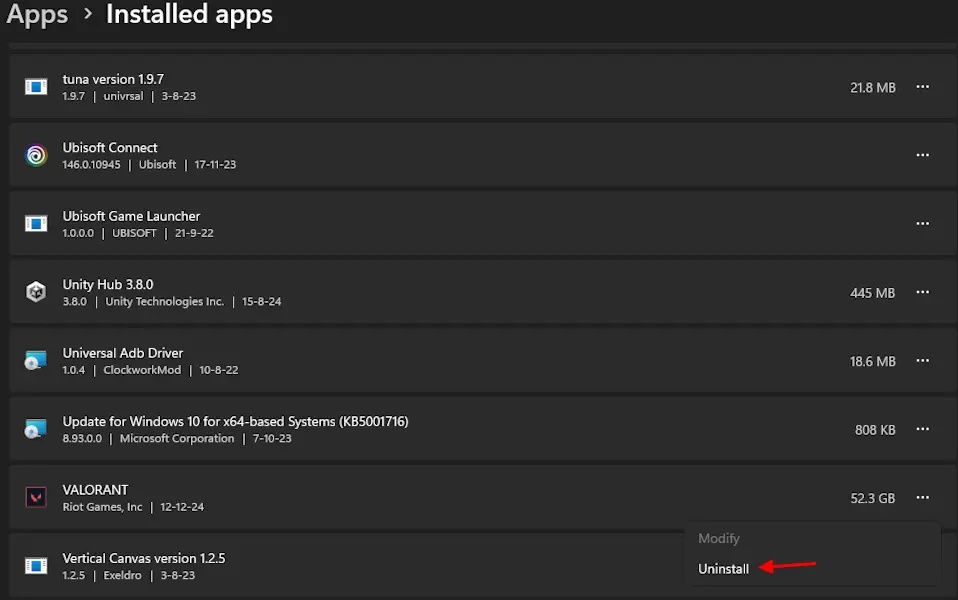
- Press Windows + I to open Settings.
- Navigate to Apps > Installed Apps.
- Scroll through and find Valorant.
- Click the three-dot menu > Uninstall.
- Now, locate Riot Vanguard in the list and uninstall that separately.
Method 2: Use Control Panel Like an OG
- Press Windows + R, type appwiz.cpl, and hit Enter.
- In Programs and Features, look for Valorant, right-click, and uninstall.
- Do the same for Riot Vanguard, yep, it’s listed on its own.
Bonus Round: Clean Up the Leftovers
Want a squeaky clean uninstall, like you were never peeking mid on Split?
- Press Windows + R, type %localappdata%, and hit Enter.
- Delete any folders named Riot Games or Valorant.
- Open C:\Program Files\ and C:\Program Files (x86)\ and remove any Riot or Vanguard folders.
- Empty the Recycle Bin and give your PC a restart.
Now your system is as clean as a fresh Radiant account.
Why You Can’t (and Shouldn’t Try to) Uninstall Valorant on Console
Let’s be clear: There’s no official Valorant on Xbox or PlayStation. So if you’re trying to uninstall it from your console, chances are you’ve either:
Seen a fake listing or modded app, or downloaded something you probably shouldn’t have.
Some folks have stumbled upon Valorant icons on jailbroken consoles or third-party stores. Don’t trust ’em. They’re not from Riot, they’re not safe, and you won’t find a real uninstall option anyway.
Just don’t. Stick to legit sources.
Common Uninstall Problems (and How to 1-Tap Them)
Sometimes, Valorant and Vanguard don’t go down without a fight. If your system’s acting stubborn, here’s how to clutch the uninstall.
1. Riot Vanguard won’t uninstall
Right-click the uninstall option and select Run as Administrator.
Still stuck? Boot into Safe Mode and try again.
2. Files still exist after uninstall
Download a tool like Revo Uninstaller to deep-clean residual files.
Or manually delete leftover Riot folders from Program Files and AppData.
3. Valorant isn’t showing up in your app list
Check if you installed it under a different Windows user account.
If it’s corrupted, reinstall the Riot Client, then uninstall properly.
What to Do After You Uninstall Valorant
Done uninstalling? GG, now wrap things up like a pro:
- Restart your PC to complete the cleanup.
- Run Disk Cleanup to free up cache and temporary files.
- If you ever want to come back for another run, it’s always there at playvalorant.com.
Playing on Console? Try These Valorant-Like Alternatives
Just because you’re on console doesn’t mean you can’t get that tactical shooter fix. Here are a few titles that scratch a similar itch:
- Rainbow Six Siege – slower, strategic, and all about angles.
- Overwatch 2 – hero shooter vibes with fast-paced chaos.
- Call of Duty: Modern Warfare II – tight gunplay and tactical team modes.
- Apex Legends – movement-based shooter with brilliant ping system and squad play.
Until Valorant lands on console, these are solid substitutes for those craving comms-heavy, aim-focused gameplay.
Final Thoughts
Uninstalling Valorant is a breeze if you’re on PC. Just remember to take Vanguard down with it and do a little cleanup afterward.
As for console players, no need to stress. Valorant isn’t on your platform yet, so you’ve got nothing to uninstall. But when that day does come (and let’s be real, it will), we’ll be right here with a guide on how to uninstall it then, too.
Until then… good luck out there, fraggers. Whether you’re chasing a new meta or finally touching grass, your uninstall game is now on point.